Resend is an email API built for developers. It focuses on high deliverability, ease of integration, and a clean developer experience for sending transactional and marketing emails.
This tutorial walks you through building a fully functional CRM in under an hour—complete with lead collection, email confirmation, newsletter subscription, and an internal admin dashboard. You’ll use:
Lovable: to generate the front end and backend logic.
Supabase: for secure data storage and authentication.
Resend: to automate and track transactional + marketing emails.
Let’s get started.
1
Create a Landing Page with a Contact Form
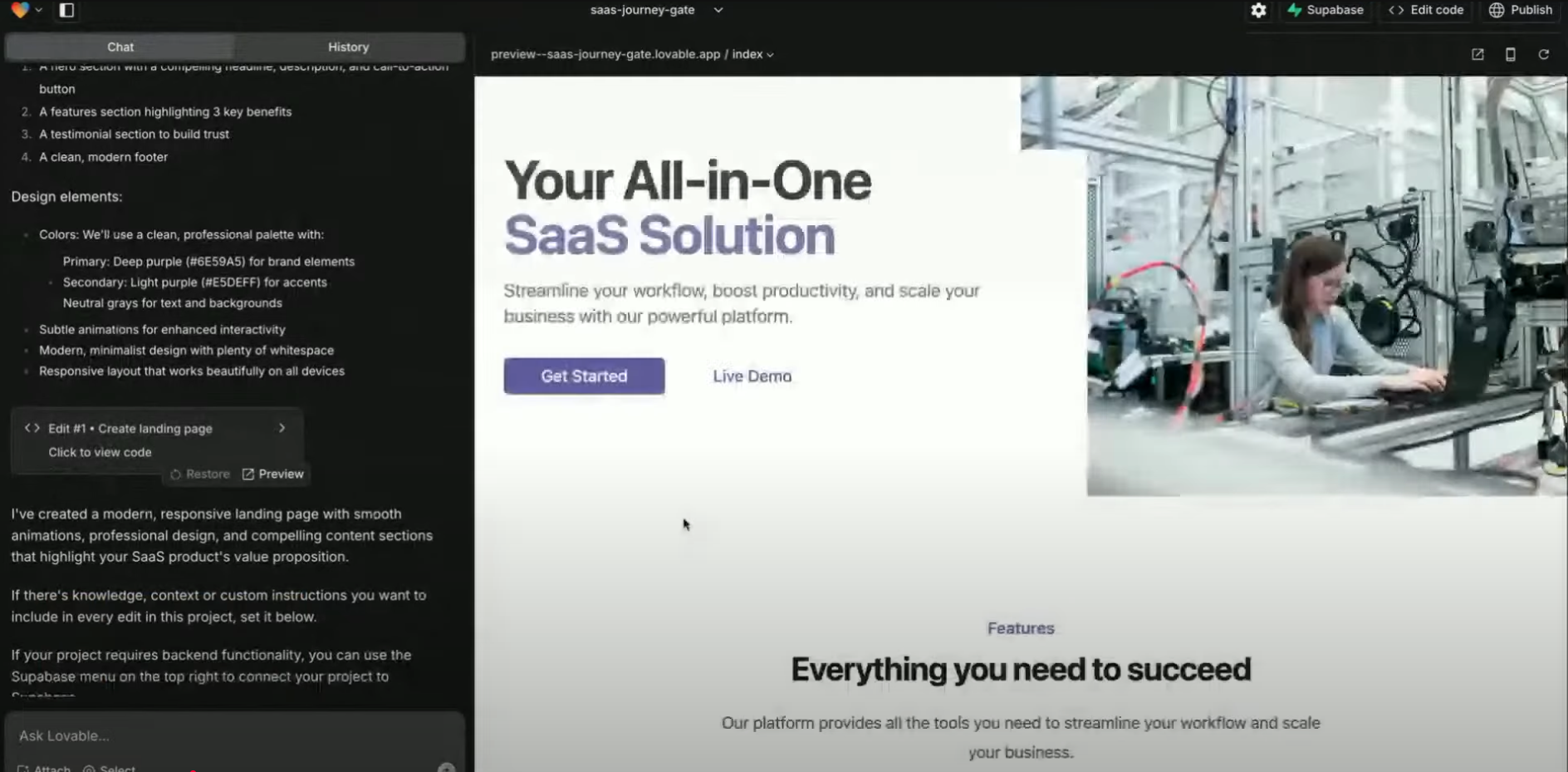
Use Lovable’s AI to quickly generate a landing page for your product or service.Instructions:
1
New Lovable Project
Create a new Lovable project.
2
Prompt:
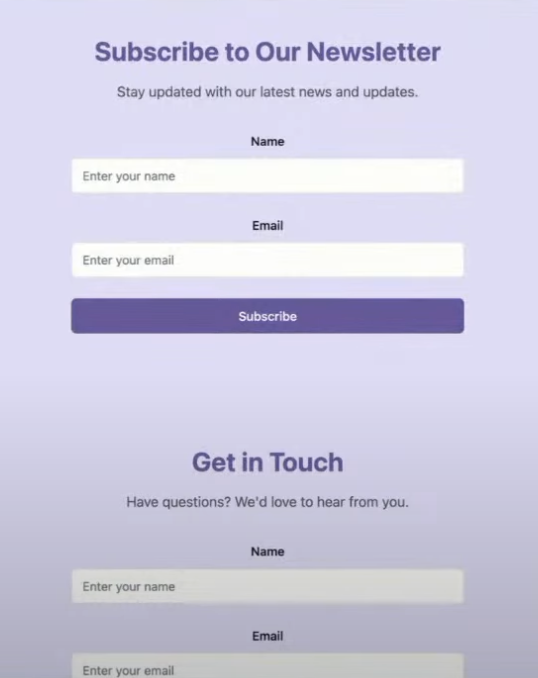
Create a SaaS landing page with a contact form collecting name, email, and message.
3
Inspect the generated code
Inspect the generated code or use the select tool to tweak elements.
4
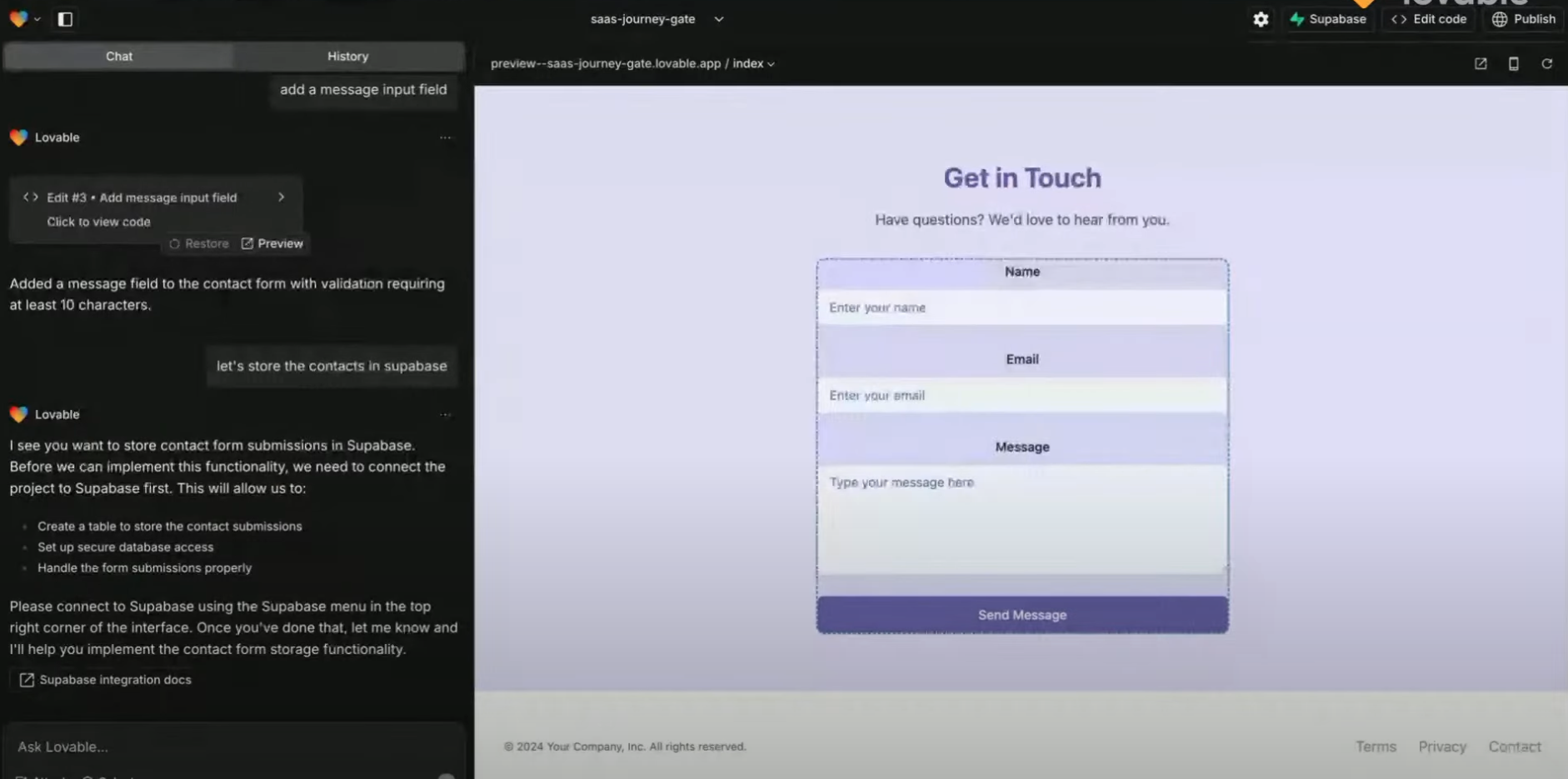
Add input validation
Add input validation and a message field for better user experience.
2
Store Form Submissions in Supabase
Supabase acts as your secure backend database.
1
Supabase account
Create a free Supabase account and a new project.
2
API Key
In Lovable, connect your Supabase project using the API key.
3
Create a `contacts` table with:
id: UUID, primary key
name: text
email: text
message: text
created_at: timestamp
4
Submission logic
Modify the form submission logic to insert data into Supabase.
5
RLS
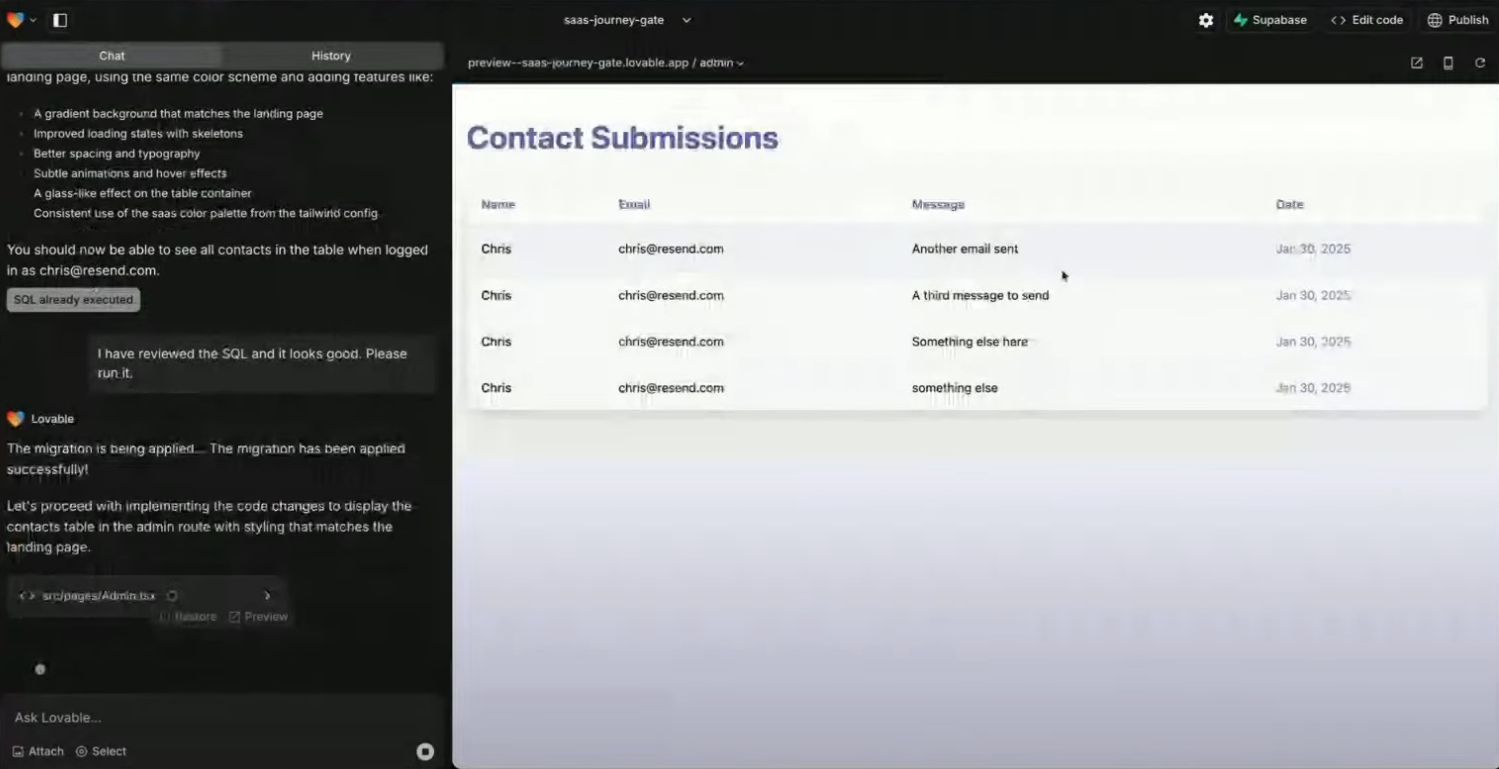
Apply Supabase Row-Level Security (RLS) to restrict access to only authenticated users.
3
Send Confirmation Emails via Resend
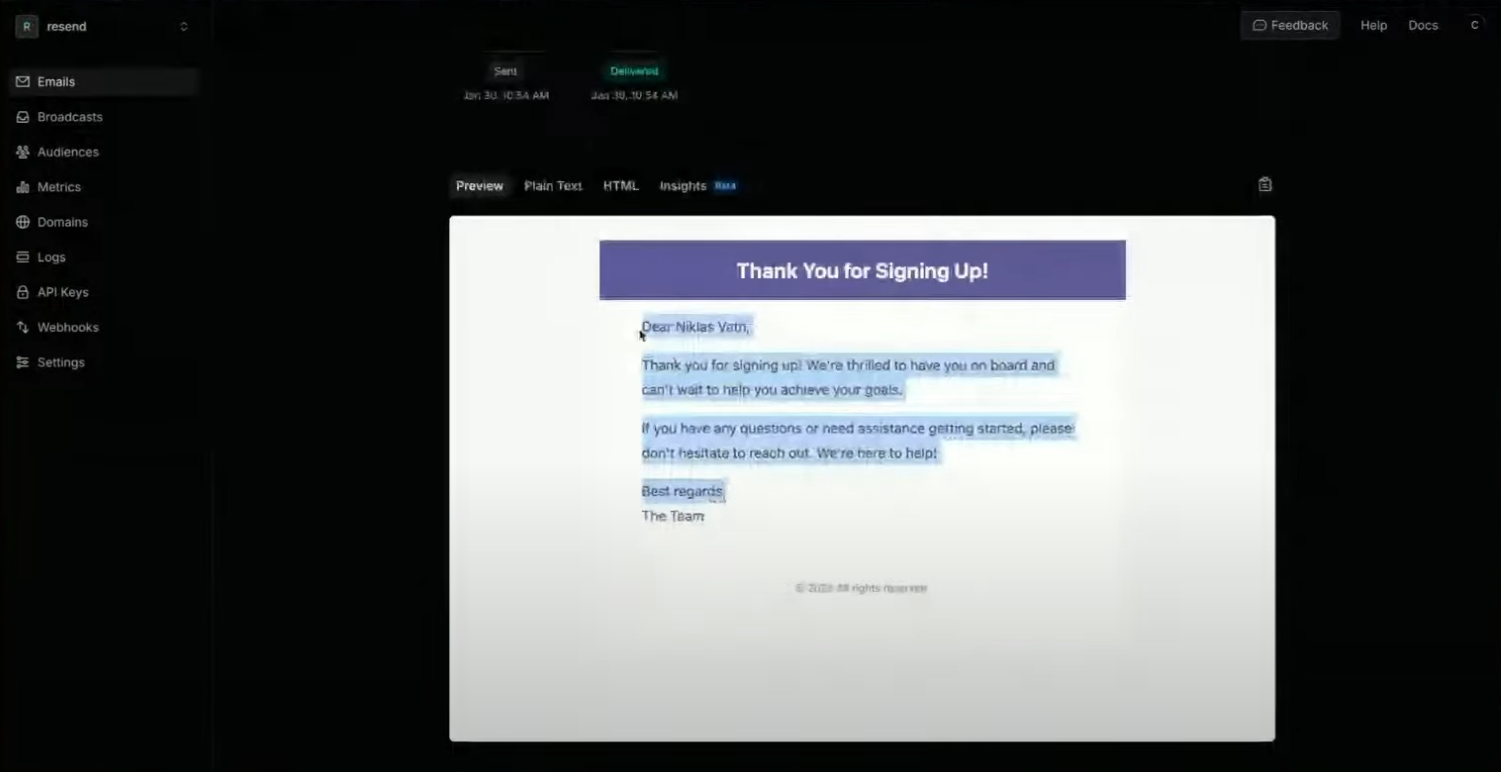
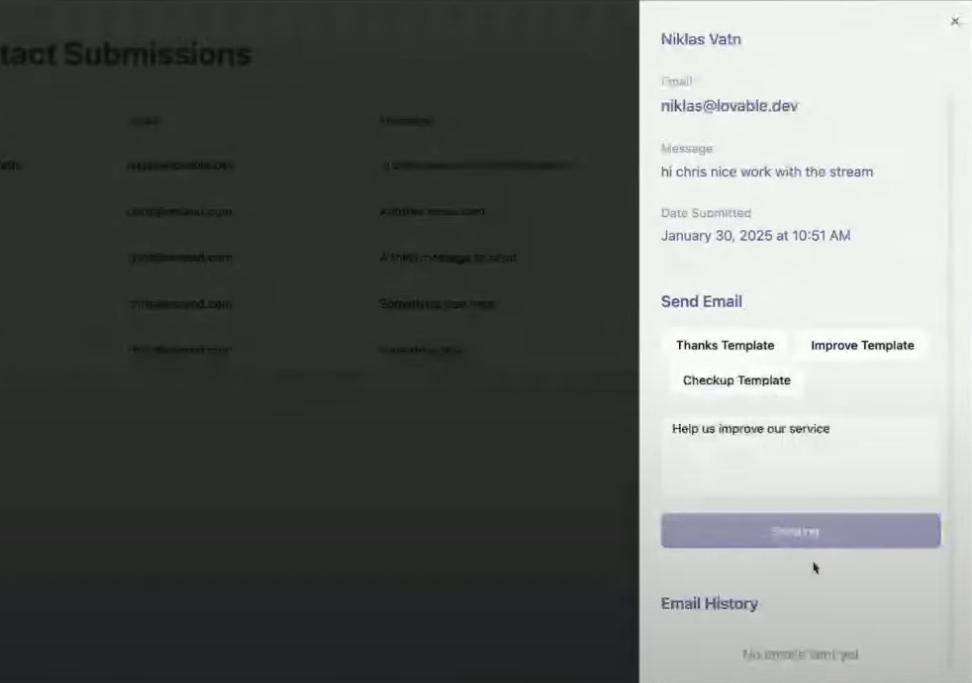
Set up Resend to send automated confirmation emails every time a lead submits the form.
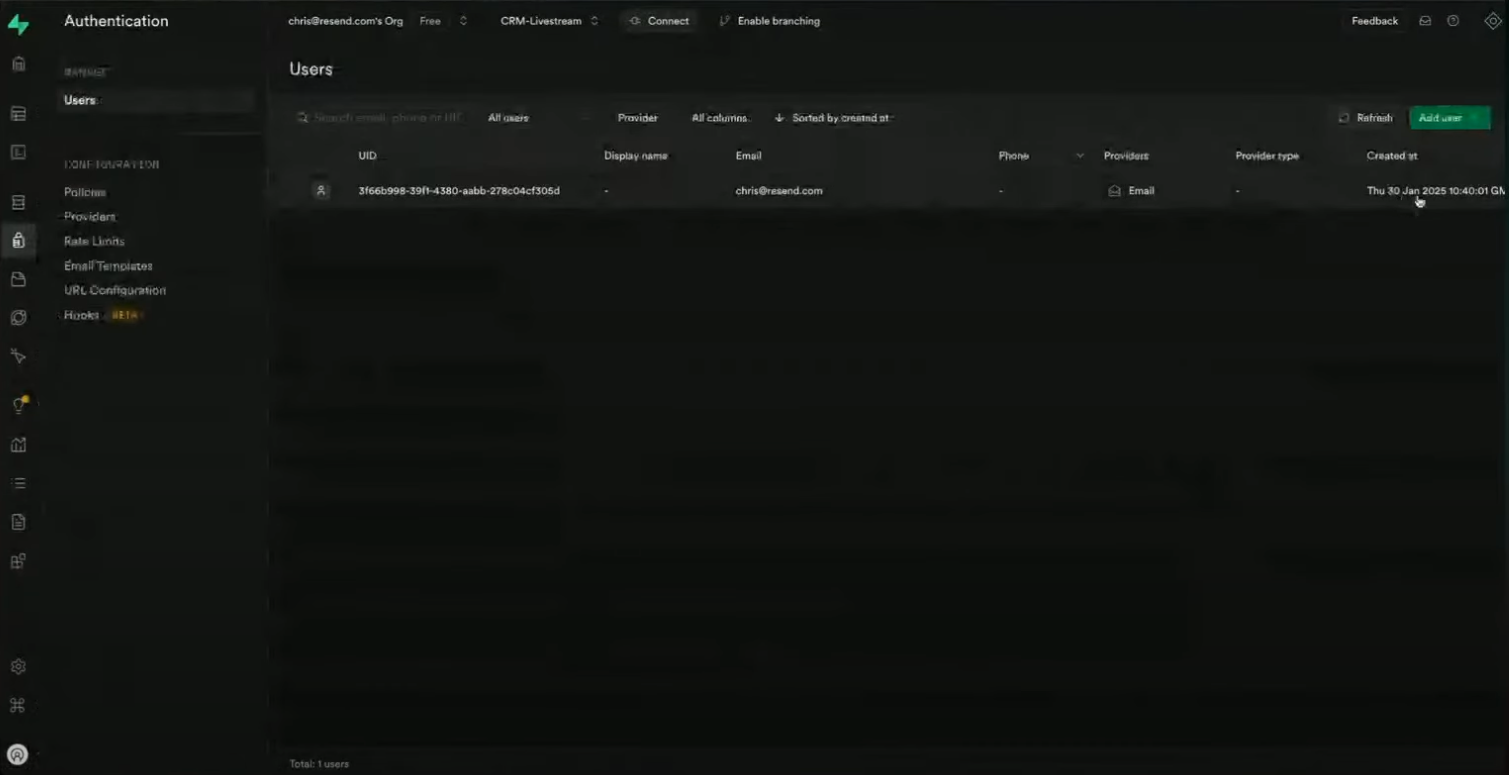
Resend automatically sets up SMTP and replaces Supabase’s default email system.
5
Customization
You can now customize auth email templates from the Supabase dashboard.
8
Final Touches & Best Practices
Error Handling: Lovable might show build errors that are false positives. Always test your functionality live.
Reverting with Supabase: If reverting code in Lovable, remember to manually delete associated Supabase policies or migrations—they’re not rolled back automatically.
Deliverability Tips:
Use subdomains to isolate reputation.
Always include a plain text version of your email.
Monitor email performance with Resend’s insights dashboard.
9
You're Done! 🎉
In less than an hour, you’ve built a modern CRM with:
Resend is an email API built for developers. It focuses on high deliverability, ease of integration, and a clean developer experience for sending transactional and marketing emails.
Do I need a paid Resend plan to follow this tutorial?
No. You can complete the entire CRM setup using Resend’s free tier, which supports sending emails from a verified domain and up to 3,000 contacts for marketing emails.
How do I verify a domain in Resend?
Go to Resend → Domains → Add your domain. You’ll be given DNS records (TXT, MX) to add via your DNS provider (e.g., Cloudflare, Namecheap). Once added, click Verify.
Use a subdomain like updates.yourdomain.com to isolate your email reputation.
Why are my Resend emails going to spam?
There are a few common reasons:
You haven’t verified your domain
Your email lacks a plain-text version
You’re sending from a generic sender like onboarding@resend.dev
You’re not following best practices (e.g., missing unsubscribe links in marketing emails)
Use Resend’s Deliverability Insights panel to get actionable tips.
Can I customize the design of the emails I send?
Yes. Use React Email—an open-source library by the Resend team—to design styled, responsive emails with React components.
Does Resend support marketing emails or only transactional?
Resend supports both:
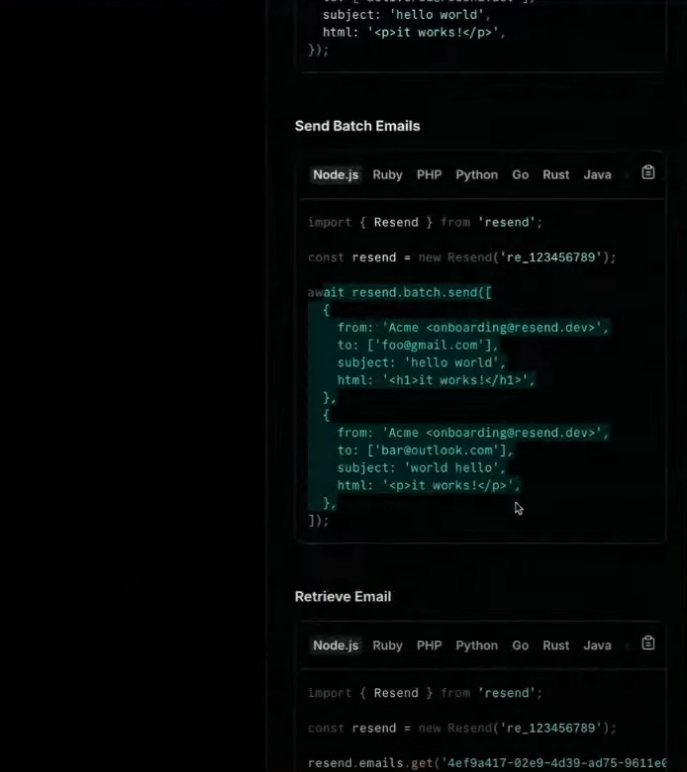
Transactional emails (confirmation, reset, notifications) using the API or SDK.
Marketing emails via the Broadcast feature and Audiences.
You can create, preview, and track campaigns from the dashboard.
How do I manage newsletter subscribers in Resend?
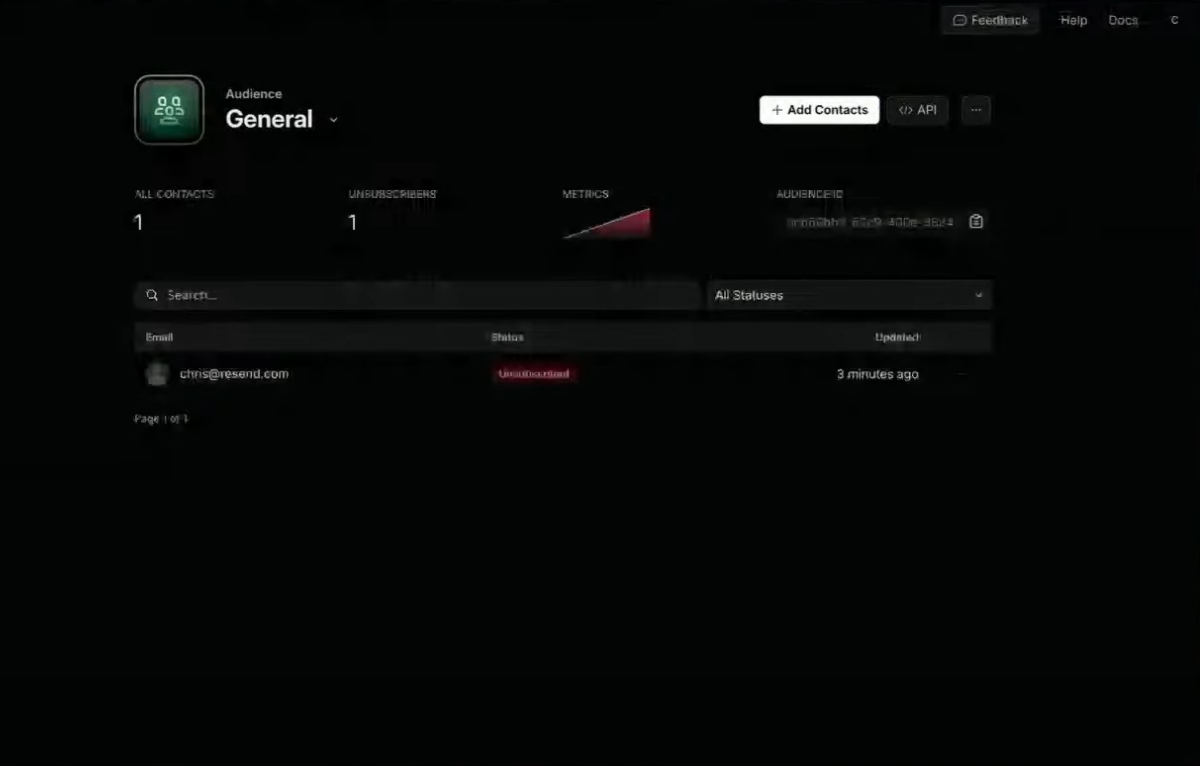
Use Audiences:
Add contacts manually, via CSV, or programmatically using the API.
Each Audience has a unique ID you can use to associate subscriptions.
Users can unsubscribe automatically via Resend’s built-in unsubscribe link.
Can I set up double opt-in for newsletters?
Not by default, but you can implement it manually:
On form submission, send an initial confirmation email.
Ask users to click a link.
On click, confirm their subscription and add them to your Resend audience.
Can I schedule or automate email flows in Resend?
Not yet. Resend doesn’t currently support drip campaigns or automated sequences.
Workaround:Use Supabase Cron Jobs to schedule tasks that trigger Resend emails at set intervals.
How do I connect Resend to Supabase Auth?
Use the official Supabase Integration by Resend:
Authenticate with your Supabase project.
Provide a domain and sender name.
Resend automatically configures your Supabase auth emails to use your Resend account.
How does Resend handle unsubscribes?
Resend automatically processes unsubscribes:
You must include an unsubscribe link in broadcast emails.
When a user unsubscribes, they are removed from the selected audience.
This is required for email compliance (e.g., CAN-SPAM, GDPR).