

Documentation Index
Fetch the complete documentation index at: https://lovable.generaltranslation.app/llms.txt
Use this file to discover all available pages before exploring further.
Overview of Lovable
Welcome to this step-by-step guide on how to create a full-stack application using Lovable: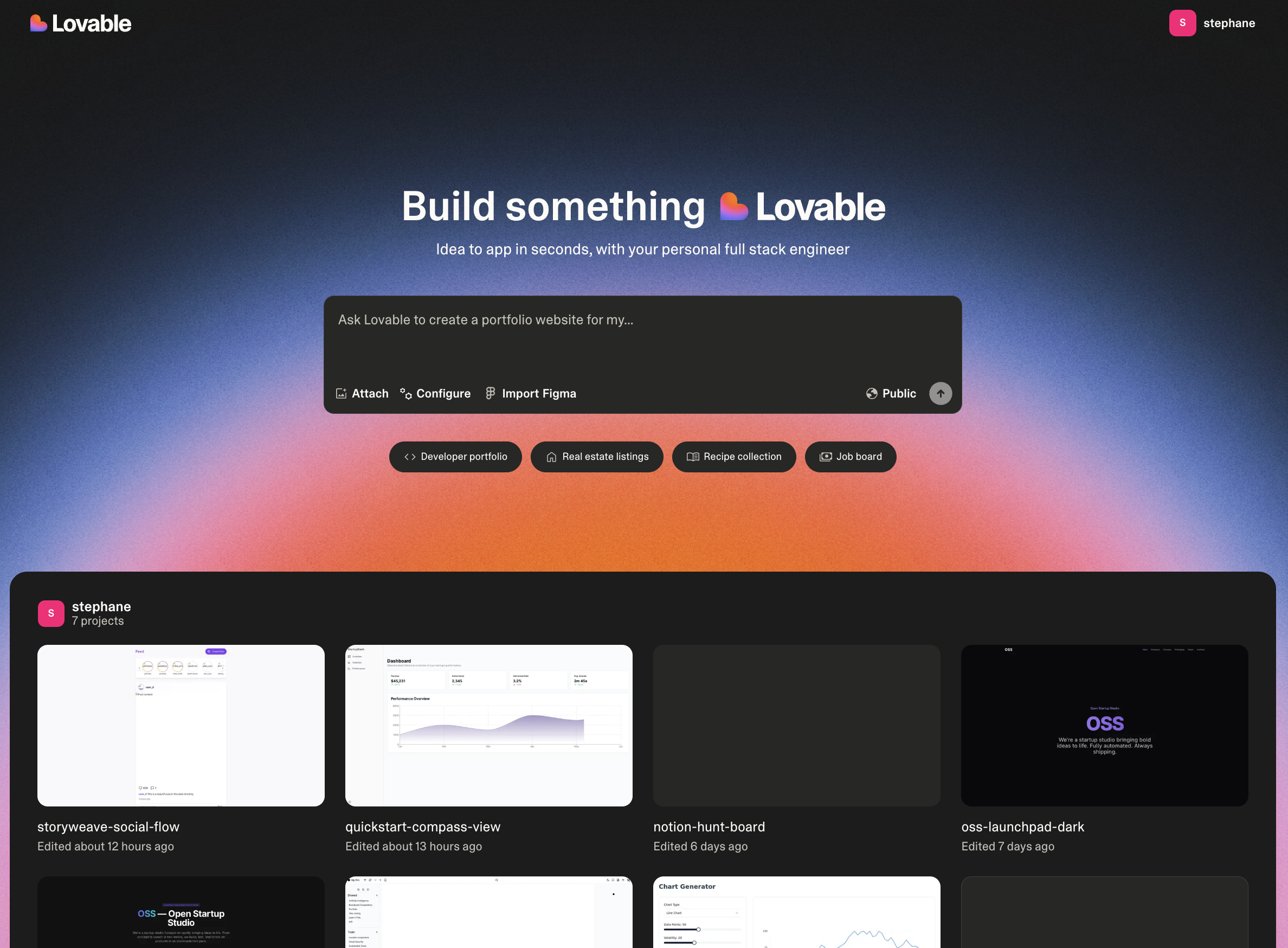
The Lovable platform overview
Create your first project
Create your first project
Step 1
Lovable dashboard
Lovable dashboard
- Here you kickstart your project with a single prompt.
- Explore all projects, including the latest and featured ones.
- Jumpstart with a template from our curated selection.
- Personalize your experience by viewing and editing your profile.
- Manage your account to check monthly credits and adjust settings.
- Experiment with Labs features like Chat mode—toggle them on or off.
- Upgrade or downgrade your plan seamlessly.
Project overview
Project overview
- Edit with ease using a chat-based interface.
- Attach images for precision edits and inspiration.
- Select and visually edit components for a seamless design experience.
- Switch effortlessly between edit mode and chat mode.
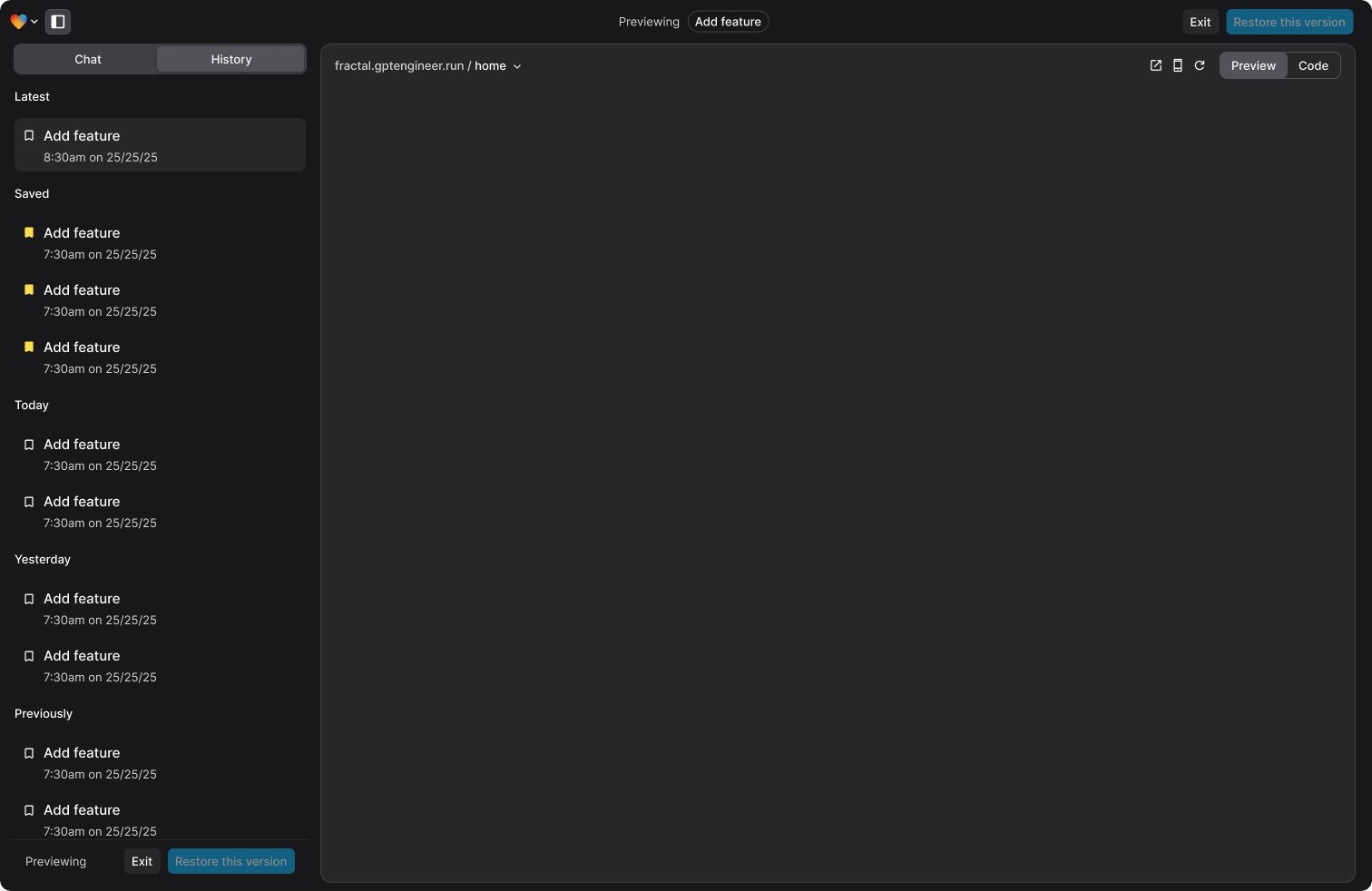
- Track changes with version history and revert to any previous version.
- Navigate through pages of your project with ease.
- Enable remixing or rename your project as needed.
- Use Lovable Cloud (or integrate with Supabase) for backend capabilities.
- Collaborate via GitHub to edit and manage your code.
- Publish, deploy, and share your project with a preview link (remember to re-publish after changes).
- Toggle between web and mobile view for responsive design.
- Refresh the preview modal to see updates instantly.
- Open your project directly using the preview link.
Project settings
Project settings
- View key project details like total edits and creation date.
- Set up custom knowledge to tailor your project’s context.
- Connect to a GitHub repository for seamless collaboration.
- Adjust project visibility as needed.
- Manage the badge display (available for paid plans only).
- Rename your project anytime.
- Delete your project (⚠️ Danger Zone).
Project quick access
Project quick access
- Dashboard for an overview of your projects.
- Account settings to manage your profile and preferences.
- Documentation and Support for guidance and assistance.
- Log out securely from your Lovable account.
Start your project
There are several ways to get started with Lovable, depending on your preferences and resources:Prompt
Prompt
- Just describe what you want to build in the prompt box.
- The more specific you are, the better the results.
- Start with clear and detailed prompts.
- You can refine and adjust your project as you go.
Remix an existing project
Remix an existing project
Using Figma
Using Figma
Using a sketch
Using a sketch
Step 1
Cloning a website or application
Cloning a website or application
Step 1
Edit your project
Add custom knowledge to your project
Add custom knowledge to your project
Use Visual Edits
Use Visual Edits
Revert a change or edit a message and revert to use a different approach
Revert a change or edit a message and revert to use a different approach
Revert to past versions instantly or go with a different approach
Bookmark key edits

Add animation component with 21st dev
Add animation component with 21st dev
Add images to prompt
Add images to prompt
Add a new page to your project
Add a new page to your project
Refactor code
Refactor code
Connect to GitHub
Connect to GitHub
Add fullstack capabilities to your project
Connect a backend
Connect a backend
- Connect to Lovable’s built-in backend - Lovable Cloud
- Use Lovable’s native Supabase integration
Add payment capabilities to your application with Stripe
Add payment capabilities to your application with Stripe
Add email capabilities with Resend
Add email capabilities with Resend
Deploy and publish your project
Set up SEO
Set up SEO
Add a custom domain
Add a custom domain
- Entri (native to Lovable)
- Netlify
- Vercel
- Namecheap
Publish my project
Publish my project